
Rclone: The Architect’s Guide to Unified Cloud Storage
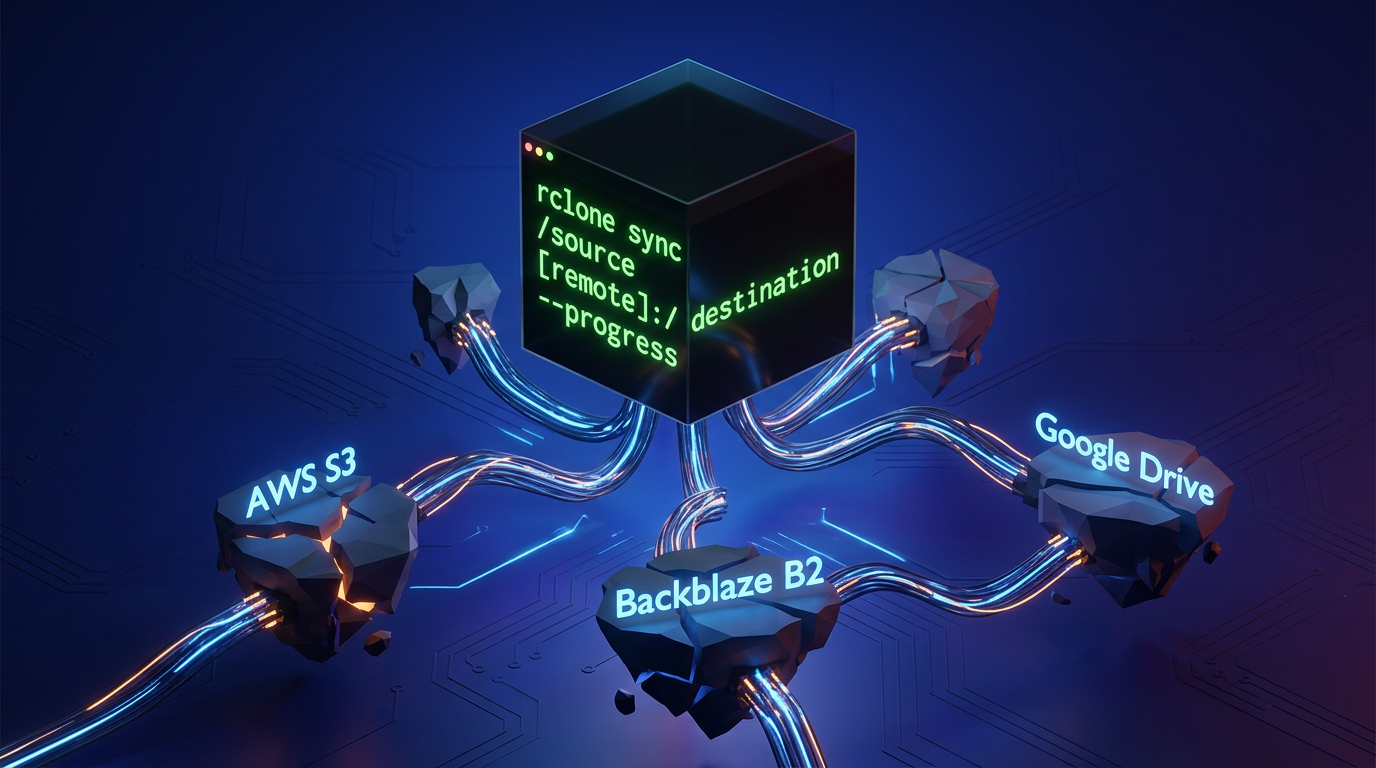
If you're still relying on bulky GUI clients, disparate vendor SDKs, or brittle custom scripts to move production data across remote endpoints, we need to talk. Rclone is the tool you should have been using yesterday. This open-source, CLI-first powerhouse lets you copy, sync, and mount data across dozens of cloud providers—all from a single terminal. In this guide, we’ll cut through the fluff, install it on Arch Linux, configure your first remote, and spin up commands that actually belong in a production pipeline.
What Exactly is Rclone?
Think of it as rsync for modern distributed storage.
Written purely in Go, Rclone ships as a single, static binary that interacts with over 40 remote storage backends. Whether you're migrating database dumps to Amazon S3, archiving immutable logs to Backblaze B2, or just syncing local configurations to Google Drive, WebDAV, or an SFTP server, Rclone abstracts away the underlying APIs. You get one consistent, predictable syntax. No more context-switching between a dozen different vendor tools.
Here is why it deserves a permanent spot in your infrastructure toolkit:
God-Mode Abstraction: Manage an entirely fragmented, multi-cloud storage architecture through a single, unified interface.
Automation Native: It thrives in headless environments. It's built perfectly for CI/CD pipelines, shell scripts, and unattended cron-driven server backups.
Advanced Data Operations: It doesn’t just copy files. You can enforce strict one-way or two-way state syncs, mount remote buckets directly to your file system as local disks, and apply granular regex filtering on the fly.
Zero-Trust Ready: Guarantees data integrity using built-in cryptographic checksums, and includes native client-side encryption so your payload is locked down before it ever touches a third-party server.
Reading about the architecture is one thing, but actually bridging the gap between your local Arch machine and a remote cluster is another. Let's get our hands dirty and wire this up.
Installing RClone
RClone is a single binary with no dependencies. Pick your platform:
Linux & macOS (using official script)
curl https://rclone.org/install.sh | sudo bashIf you prefer package managers:
# macOS (Homebrew)
brew install rclone

# Debian/Ubuntu
sudo apt install rclone

# Fedora
sudo dnf install rclone
Windows
Download the installer from rclone.org/downloads or use Scoop / Chocolatey:
scoop install rclone
choco install rclone
After installation, verify it works:
rclone versionSetting Up Your First Remote
RClone uses a configuration file (usually ~/.config/rclone/rclone.conf) to store remote definitions. You interact with it through a friendly wizard:
rclone configYou’ll see a menu:
No remotes found - make a new one
n) New remote
s) Set configuration password
q) Quit config
n/s/q>
Choose n to create a new remote. Then follow the prompts:
Name: Enter a memorable name, e.g.,
gdrive.Storage type: Type the number for your provider (e.g.,
13for Google Drive).Credentials & OAuth: RClone will guide you through client ID and secret (you can leave them blank for a “quick start” that uses RClone’s own OAuth client). For Google Drive, it will open a browser for you to authenticate.
Advanced options: Unless you know you need them, just press Enter to accept defaults.
Finalize: Type
yto save, thenqto quit the config.
You now have a remote named gdrive: (the colon is important). You can list all configured remotes anytime:
rclone listremotesEssential RClone Commands
Listing files
List top-level directories and files:
rclone ls gdrive:For a more detailed view with size, path, and modification time:
rclone lsl gdrive:Copying files (like cp)
Copy a local file to the remote:
rclone copy myphoto.jpg gdrive:Photos/This is non-destructive — it skips identical files and does not delete anything on the destination.
Synchronizing directories (like rsync)
Make the destination exactly match the source (one‑way sync):
rclone sync /home/me/Documents gdrive:Backup/DocumentsWarning: sync will delete files in the destination that are not present in the source. Always test with --dry-run first:
rclone sync --dry-run /home/me/Documents gdrive:Backup/DocumentsCopying entire directories
If you just want to push new and changed files without deleting anything, use copy:
rclone copy /home/me/Photos gdrive:PhotosMoving files
Move a file (delete from source after successful copy):
rclone move report.pdf gdrive:Work/Checking differences
check compares source and destination without transferring data:
rclone check /local/path gdrive:remote/pathAdd --one-way to ignore extra files on the destination.
Mounting cloud storage as a local disk
With rclone mount, you can access a remote like a normal filesystem (requires FUSE on Linux/macOS, or WinFsp on Windows):
# Linux
rclone mount gdrive: ~/CloudDrive &

# macOS (requires macFUSE)
rclone mount gdrive: ~/CloudDrive --vfs-cache-mode writes &

# Windows
rclone mount gdrive: X: --vfs-cache-mode writes
The --vfs-cache-mode flag enables caching so you can read/write files directly.
Real‑World Beginner Recipes
1. Backup your photo folder to Google Drive
rclone sync ~/Pictures gdrive:Backup/Pictures --progress --verbose--progress shows real‑time transfer stats, and --verbose gives more detail.
2. Keep two cloud services in sync
Suppose you want to mirror files from Dropbox to Backblaze B2. First configure both remotes (dropbox: and b2:), then:
rclone sync dropbox:/ b2:/my-dropbox-copy --transfers 4--transfers controls the number of parallel file transfers (useful for large sets).
3. Automate daily backup with a script
Create a bash script backup.sh:
#!/bin/bash
rclone sync /var/www/html gdrive:ServerBackup/www --log-file=/var/log/rclone.log
Then add a cron job: 0 2 * * * /home/user/backup.sh
Handy Tips for Beginners
Always use
--dry-runbefore destructive operations likesyncormove.Add
--progressto see what’s happening.Use filters to include or exclude files:
``bash rclone sync . gdrive: --include "*.jpg" --exclude "temp/**" ``
Set bandwidth limits to be a good network citizen:
``bash rclone copy . gdrive: --bwlimit 1M ``
Encrypt sensitive data with the
cryptremote: create a crypt overlay on top of any other remote, and RClone encrypts everything before uploading.Check logs: use
--log-file=pathor-vfor verbose output when troubleshooting.
Wrap‑Up
RClone turns cloud storage into a flexible, scriptable resource. Once you’ve set up your first remote, you’ll find yourself reaching for it whenever you need to move, sync, or mount files in the cloud. Start with rclone config, experiment with ls and copy, and soon you’ll be automating backups like a pro.
If you get stuck, the official documentation at rclone.org/docs is excellent, and the community forum is very helpful. Happy syncing!